Guide
How To Block Ads On Yahoo
October 30, 2026
Guide

Most pop-ups deserve their bad reputation. But the same browser feature that serves a fake virus warning also opens your bank's payment confirmation, a login window or a live chat with customer support. When a pop-up blocker catches one of those, the site simply stops working.
So the real question isn't whether to block pop-ups or allow them. It's which sites get to open them. Chrome lets you decide site by site, and Ghostery keeps blocking ads, trackers and intrusive pop-ups everywhere else. Allowing one window doesn't mean letting the ad tech back in.
This guide shows you how to block or allow pop-ups on Chrome, for one site or all of them, on desktop and mobile, and how to tell a window you need from one you don't.
If a site you trust says a window was blocked, the quickest way to allow pop-ups on Chrome is for that site only. Chrome's pop-up blocker stays on everywhere else.
No icon? Click the site controls icon to the left of the web address, open Site settings and set Pop-ups and redirects to Allow.
When Chrome blocks a pop-up on mobile, a Pop-ups blocked message appears at the bottom of the screen. Tap Always show to allow that site.
To undo it later, go back to the site's settings and switch Pop-ups and redirects back to Block, or remove the site from your allowed list (see below).
If you want to change the default for every site, this is the global setting. Most people don't need it: a single site exception fixes the problem without letting every website open new windows. But if you're looking for how to disable the pop-up blocker entirely, here's where it is.
Desktop:
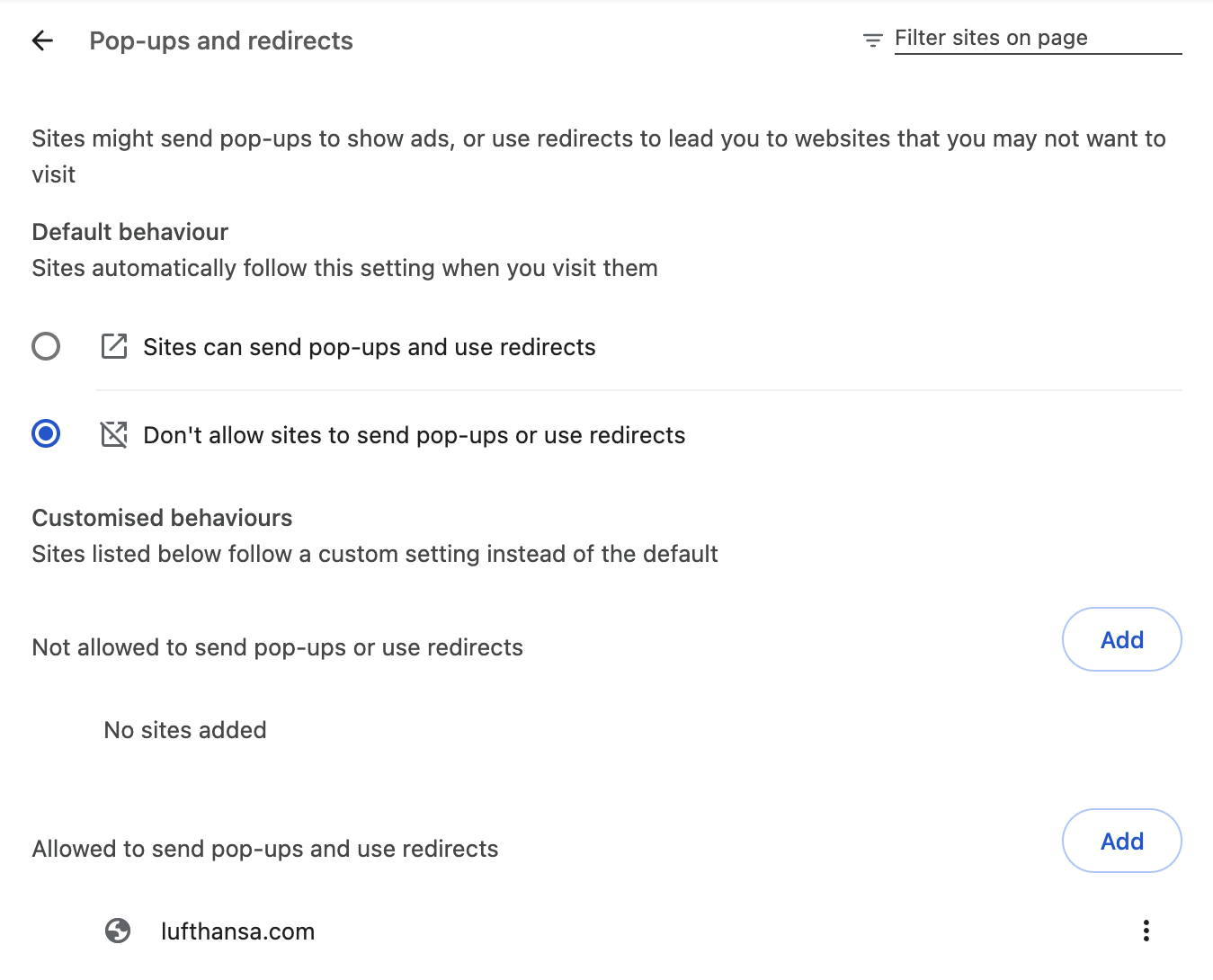
Android: Menu (⋮) → Settings → Site settings → Pop-ups and redirects, then use the toggle.
iPhone and iPad: More (…) → Settings → Content Settings → Block Pop-ups, then turn Block Pop-ups off or on.
A pop-up opens a new browser window or tab. That's what Chrome's setting controls, and it's how many sites handle sign-ins, payments, documents and support chats.
Pop-over ads work differently. They're overlays drawn on top of the page you're already reading: a full-screen promo, a newsletter modal, a "you've won" banner. Pop-unders open behind your current window, so you only find them later. Ad redirects send you to another domain without asking.
The catch: Chrome's pop-up setting deals with new windows and redirects. It doesn't remove overlays inside the page. So you can unblock pop-ups on a site for one legitimate window and still be buried in ad clutter. That's the layer an ad blocker covers.
Chrome blocks most pop-ups by default. When it does, it tells you and lets you make exceptions, either per site or for the whole browser, as shown above. It also restricts pop-ups and ads on sites Google flags for abusive ad experiences.
That's a solid baseline, but it has limits:
Browser settings are a good narrow fix. They're not a privacy strategy.
Allowing pop-ups changes one permission on one site. It doesn't have to mean dropping your guard.
Ghostery blocks ads, trackers and intrusive pop-ups before they load. So when you allow pop-ups in Google Chrome for your bank's payment window, the ad scripts and third-party trackers on that same page stay blocked. And because Ghostery works on what a page loads rather than on windows, it catches what Chrome's setting misses: overlays, pop-unders and ad redirects.
Blocking more only helps if the page still works, so Ghostery doesn't treat every pop-up the same way. Take cookie banners: simply hiding them can leave a site half-loaded or stuck behind a consent wall. Never-Consent answers the banner for you instead, opting out of tracking through the site's own consent system. The banner disappears, the page keeps working, and the site gets a clear signal that you don't want to be tracked.
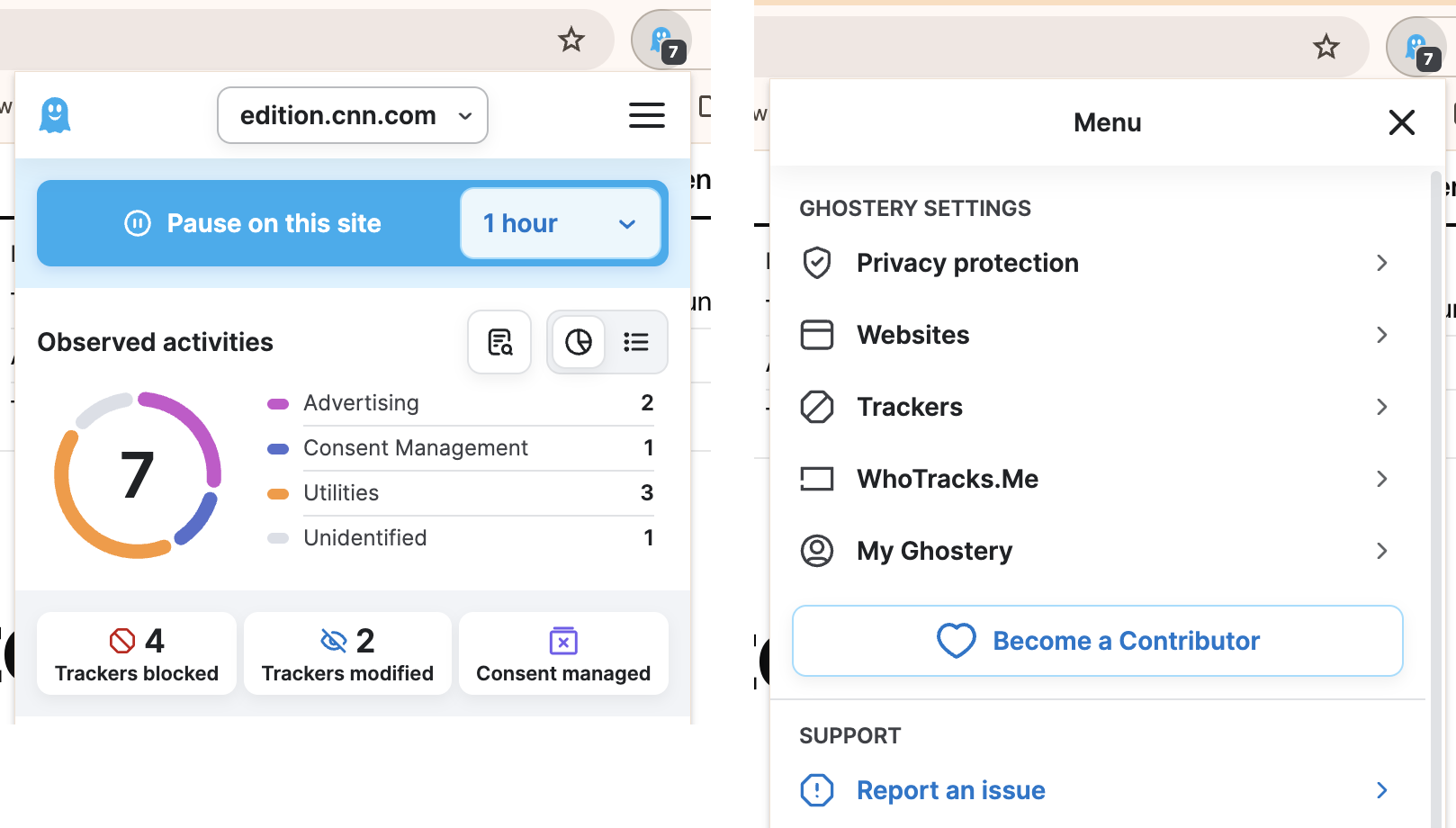
Other interruptions get the same care. In Ghostery's settings under Privacy protection → Distractions, you choose which prompts to hide: "Sign in with Google" boxes that appear before you've asked to log in, browser promotions nudging you to switch or install something, and "Allow notifications?" requests. Signing in, and any notifications you've already allowed, keep working.
Using Chrome on your phone? Google doesn't allow extensions in Chrome for Android or iPhone, so no ad blocker can run inside it. To keep the same protection on mobile, use Ghostery in Firefox or Edge on Android, or in Safari on iPhone and iPad.
That's why Ghostery rarely gets in the way of a site you need. If it ever does, open the Ghostery panel, click Pause on this site and try again. Then let us know through Report an issue in the Ghostery menu so it gets fixed for everyone. Protection stays on everywhere else.
Not every site that asks deserves permission. Keep the blocker on if a site:
That last one is a separate permission, and it's the most common reason spam keeps appearing after you've blocked pop-ups. If that's happening, check Chrome's notification settings too. To stop new requests before they appear, turn on Notification prompts in Ghostery's Distractions settings.
Redirects need extra care, because allowing pop-ups for a site in Chrome allows its redirects too. With Redirect Protection turned on (Privacy protection → Redirect Protection → Browser Redirect Protection), Ghostery stops redirects that run through trackers or lead to unknown, possibly malicious sites, and shows you where they were heading. You can allow the redirect once or add the site as an exception.
A simple rule: allow a pop-up when you've just clicked something that should open one, on a site you recognize.
Pop-ups aren't good or bad on their own. What matters is whether you asked for the window and trust the site that opened it.
Allow the ones you need, site by site. Leave Chrome's blocker on for everything else. And let Ghostery handle the ads, trackers and intrusive pop-ups a browser setting can't tell apart from the real thing.